The purpose of this topic is to familiarize you with the system's components and describe the various methods for navigating the system.
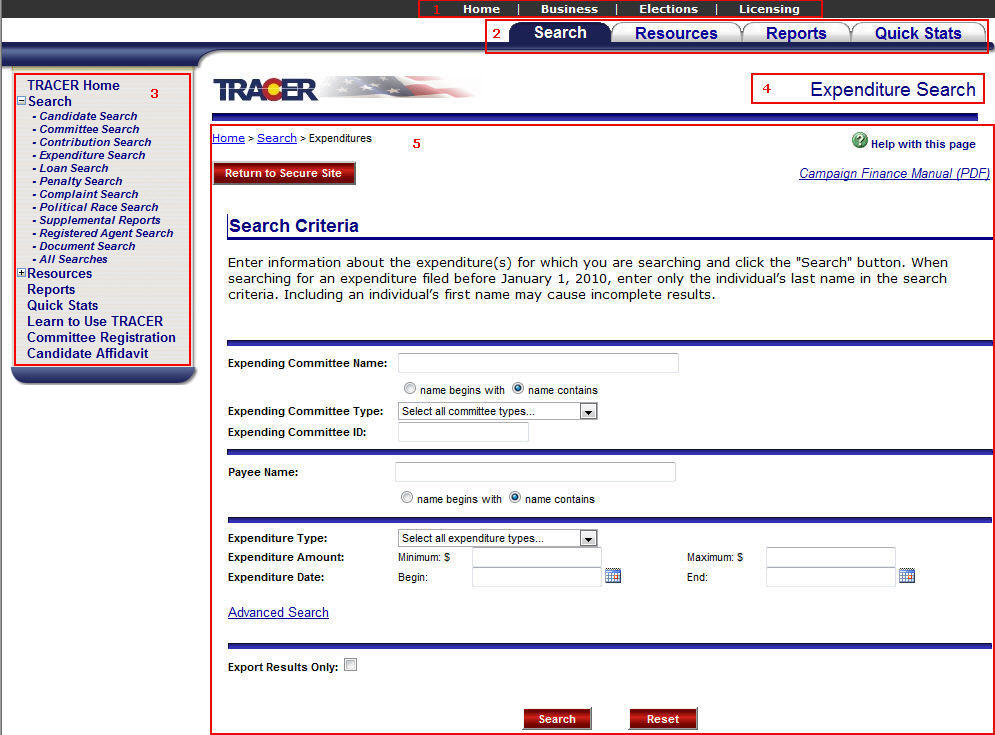
Each page in the system has a similar layout.
Link Menu Bar — A group of links to pages on the Secretary of State web site.
Tab Menu Bar — A group of tabs used to navigate the application.
Left Navigation Menu — A list of menu options used to navigate the application.
Page Title — The title of the currently displayed application page.
Workspace — The section of the application page that contains the page functionality.
Application functionality can be accessed using the Tab Menu Bar located directly above the Workspace or the Left Navigation Menu located to the left of the Workspace. The options displayed in the menus vary based on your assigned security roles and other menu options selected.
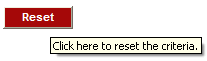
Each field and button on a page is assigned a tool tip, with the exception of fields and buttons within a data grid. Tool tips are displayed when you hover the mouse over a field or button or, for some items such as drop-down list boxes or radio buttons, in the blank space surrounding the item. Below is an example of a tool tip for the reset button.
|
|
Text Field - An area on a page that allows you to enter or view a single unit of data (e.g., name, SSN). |
|
|
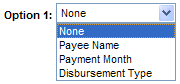
Drop-Down List Box - A list of available choices that displays when you click the arrow on the right side of the drop-down list box. Some drop-down list boxes are configured to allow you to select multiple items, while others allow you to select only one. |
|
|
Check Box - A small, square box you can select or clear to turn an option on or off. |
|
|
Radio Button - A button that represents a mutually exclusive selection (only one option may be selected at a time). When you click a radio button, the previously selected radio button is cleared. |
|
|
Push Button - A rectangular box with a label and/or graphic on the face that performs a specific action when you click it. |
|
|
Link - Underlined text that performs a specific action when you click it. |
A data grid is used to display information pulled from the database in a table format (rows and columns). Each row represents a single record and each column represents a single field. For data grids, rows and records are interchangeable terms. Data grid titles and column headings are hidden if there are no records to display. If a column in a data grid contains no data, it's because the field was not populated by either the user or the system, whichever the case may be.
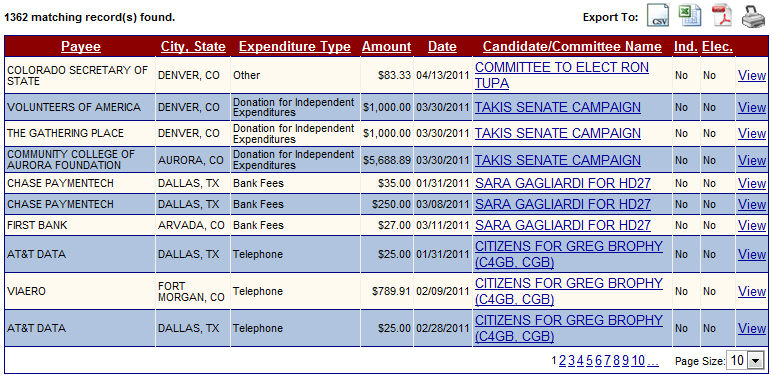
When a page exceeds the computer screen's display limits (either horizontally or vertically), a scroll bar is displayed. A scroll bar is also displayed when the contents of a list box cannot be displayed within the given area. The scroll bar allows you to view the information that extends beyond the viewing area. See the example below.